
Add English subtitles to a video with AI transcription and translation
Sometimes the original voices are the point and you only need viewers to understand them. DubLocal Studio transcribes the dialogue with timings, translates it into English and lets you correct every line, then exports an SRT file or burns the subtitles into the video.
Card payment for international customers is coming soon.
Updated October 2026 · The DubLocal team
How to add English subtitles to a video
- 01
Open the video
Pick the video's language and English as the subtitle language.
- 02
Choose Subtitles only
The original audio stays untouched; Studio only adds the English text.
- 03
Transcribe and translate
Studio writes out the dialogue with timings and translates each line.
- 04
Fix lines and timing
Edit wording, split or merge lines and nudge timings in the table.
- 05
Export
Download an SRT file, or render an MP4 with the subtitles burned in.
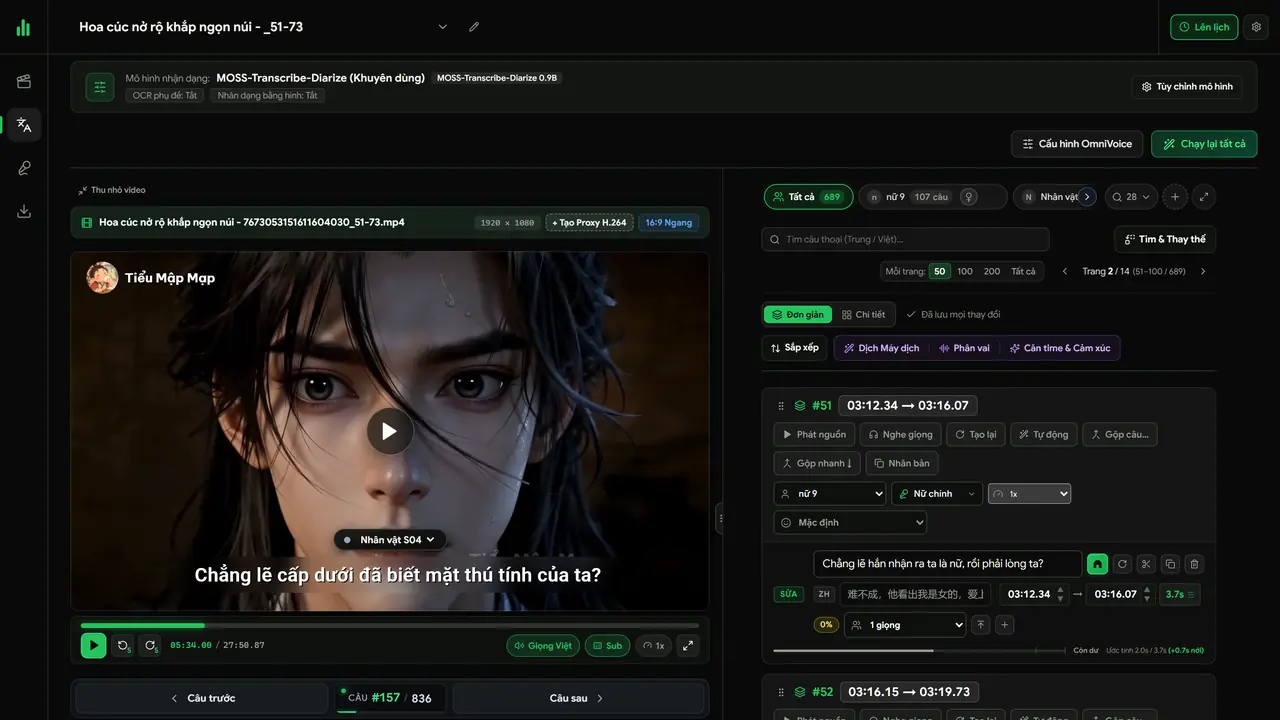
Transcribing, translating and editing in the Script step
Open a video, choose two languages and a mode, then Run all: Studio transcribes, translates and splits the roles.
Works from 10 languages
Chinese, Japanese, Korean, Thai, Vietnamese, French, Spanish, Indonesian and German videos can all get English subtitles, and English videos can get subtitles in any of those languages.
Cover old burned-in subtitles
When the video already has subtitles in another language burned into the picture, Studio blurs that band and places the English subtitles over it.
Remove the background music, keep the dialogue and effects
Does the video carry songs or copyrighted music? When you click Run all, choose “Remove music, keep sound effects”: the exported video keeps the original dialogue and sound effects without the music and songs. The preview in Studio plays exactly what the export will. This step is slower, and Studio tells you roughly how many minutes it adds. The same switch works for a whole batch.
Add a voice later
The same project can be dubbed afterwards: switch the mode to character dubbing or narration and Studio voices the lines you already corrected.
Watch DubLocal Studio from start to finish (Vietnamese audio)
The tutorial covers installing, opening a video, transcribing, translating, casting, generating voices and exporting MP4.
Frequently asked questions
How accurate are the AI subtitles?
Clear dialogue transcribes well, but names, slang and noisy scenes need a check. Every line is editable before you export.
Can I get an SRT file?
Yes. Export an SRT to upload to YouTube or use in another editor, or burn the subtitles into the MP4.
Can I remove the background music from a subtitled video?
Yes. Choose “Remove music, keep sound effects” when you click Run all, or turn on the switch of the same name in the Export step: the original dialogue and effects stay, the music and songs go.
Does it work for Korean and Japanese videos?
Yes. Korean, Japanese, Chinese, Thai and the other supported languages can all be translated into English subtitles.
Is my video uploaded anywhere?
No. The video stays on your computer; only the dialogue text goes to the translation tool you choose.