
Download, merge and split videos and cut Shorts with a hook, in one window
The Video tools window in DubLocal Studio gathers the prep work around dubbing: download dramas from Chinese and short-drama platforms, merge several episodes into one seamless video, split a long film into named episodes, and cut the best moment into a 9:16 vertical video with hook text and a thumbnail.
Card payment for international customers is coming soon.
Updated October 2026 · The DubLocal team
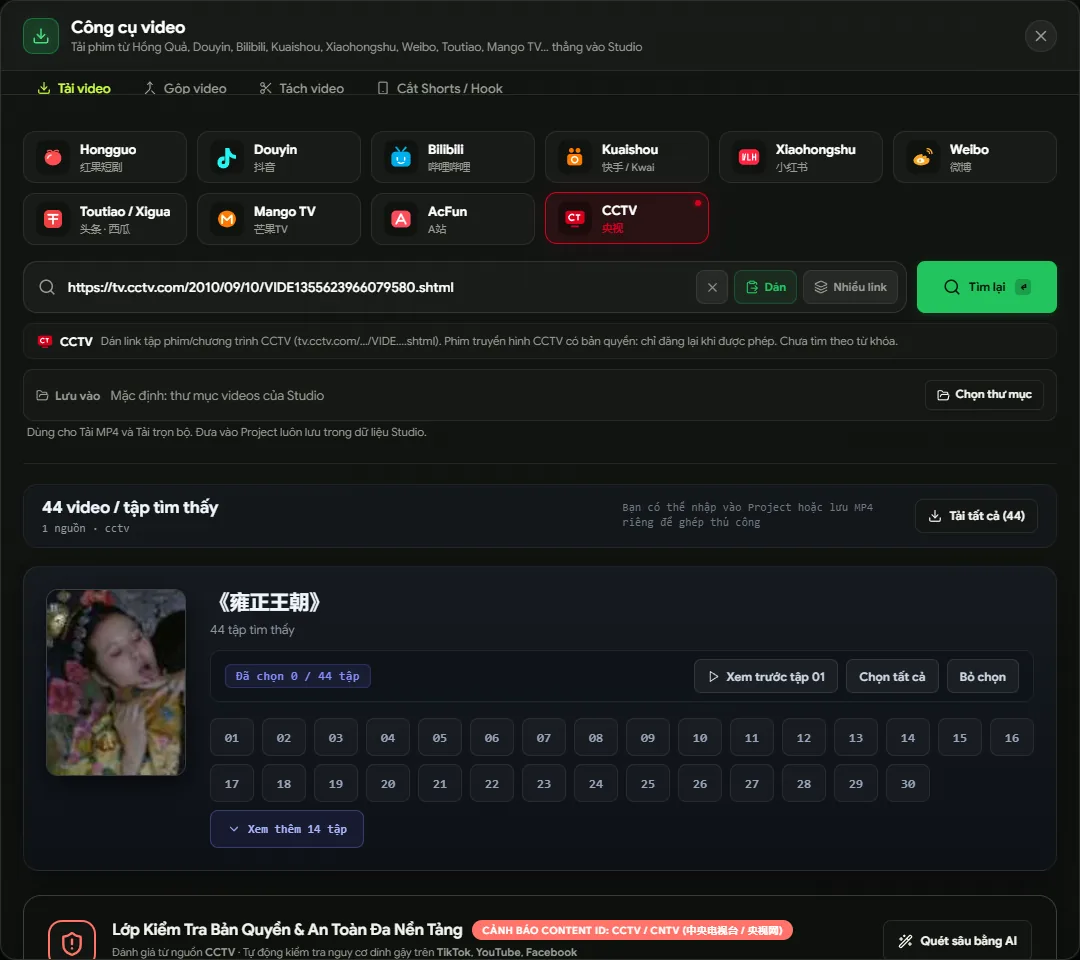
How to use the Video tools
- 01
Open Video tools
Click Download & edit video in Studio's top bar to open the Video tools window.
- 02
Pick the job
Choose the Download video, Merge videos, Split video or Shorts / Hook tab.
- 03
Pick a video or paste a link
Paste a link, choose the episodes to merge or the video to split or cut, and set that tab's options.
- 04
Export
Studio processes the video and saves the result to your folder; the original files are not changed.
Download dramas straight into Studio
Pick a platform, paste the link of an episode or playlist, or type the title. Studio lists the episodes, you tick the ones you want, preview them right in Studio and download: every episode becomes a project ready to dub.
Supported sources include Hongguo, Douyin, Bilibili, Kuaishou, Weibo, Mango TV and, under UK/US, Plex, ReelShort and other free short-drama sites; for paid short dramas Studio only downloads the free episodes. When a source is switched off for now because it does not download reliably, Studio says why in the list.
Merge many episodes into one video
Join the episodes into one seamless Full HD video: landscape 16:9 (1920×1080) for YouTube and Facebook or vertical 9:16 (1080×1920) for TikTok, Reels and Shorts. Studio always re-encodes every episode to the frame size and frame rate you choose before joining them, so picture and sound never drift.
- Natural sorting by episode name (Episode 1, Episode 2…), reorder with the up and down buttons
- The frame rate defaults to the one most of the source files use
- Audio and video sync is checked before export
Split a long film into episodes
Cut one long video into equal episodes, by minutes per episode or by number of episodes. Name them ahead, like Film title - Episode 01, and choose the first episode number. A fast keyframe cut keeps the original quality, or cut frame-accurately (re-encoded, slower). A very short last part is added to the previous episode.
Auto trim silences and music right in the Script step
In the Script step, click Auto trim: the Timeline opens and Studio marks red on the video track the parts of the open video you can drop: silences (audio under a threshold measured from the video's own background noise, or one you pick), parts where nobody speaks even with music playing (the speech AI, needs Install AI), black or frozen picture for 2 seconds or more, and music-only parts such as an opening theme, a scene bridge or end credits while nobody talks (the music separation AI, needs Install AI; to drop music likely to get a copyright claim, while music under dialogue is a job for Remove music, keep sound effects); where a line is spoken is never touched. Set the shortest part to cut and how much to keep on each side so no word gets clipped, click a red part to keep it, press play to hear the video without the red parts, then click Cut the red parts; Ctrl+Z brings them all back. The export cuts those parts from picture and sound, and the subtitles move with them; every auto cut keeps a pause beside the lines, so voice and subtitles stay on the picture.
Cut out the parts you don't want, right on the timeline
On the Script step the timeline sits at the bottom with a video track, like CapCut: drag the background or scroll to move along the video, Ctrl + scroll to zoom. Press Split at the playhead (the split snaps to a nearby line edge), click the unwanted piece and press Delete: it is gone and the next piece snaps onto the one before, lines included; Ctrl+Z brings it back. Drag a piece's edge to adjust, double-click a join to merge. The voices are not cut with the picture: a line being read carries on across the join, and the lines after move later if they would overlap. On the Lines track, drag a block to move a line (the lines next to it are pushed along), Ctrl/Shift + click or Shift + drag a box to select several, Delete removes them, select one line and press C to split it at the playhead, Ctrl+C/Ctrl+V copy and paste. CapCut-style keys: Space plays/pauses, ← → step one frame, Q/W cut what comes before/after the playhead. The export cuts deleted pieces out of picture and original sound and moves the SRT with them.
Cut Shorts with hook text and a thumbnail
Pick the best 60–180 seconds as a hook, zoom the video to fit the frame, add hook text on top and a caption below over a 16:9 thumbnail. The 9:16 preview is built exactly like the export; Studio saves a 1080×1920 MP4, by default to a Video_Shorts folder next to the film.
Watch DubLocal Studio from start to finish (Vietnamese audio)
The tutorial covers installing, opening a video, transcribing, translating, casting, generating voices and exporting MP4.
Frequently asked questions
Which plan do the video tools need?
DubLocal Studio on Windows and a paid license; license days from a gift code do not unlock the video tools.
Which platforms can it download from?
Hongguo, Douyin, Bilibili, Kuaishou, Weibo, Mango TV, Plex, ReelShort and the other sources listed in Studio. For paid short dramas only the free episodes can be downloaded.
Does merging put the sound out of sync?
No: Studio re-encodes every episode to the same frame size and frame rate before joining them, then checks that sound and picture are in sync.
Does splitting lower the quality?
The fast keyframe cut keeps the original quality. The frame-accurate cut re-encodes, so it is slower.
Does trimming clip the last word of a sentence?
No: by default Studio keeps 0.15 seconds on each side of a cut and only cuts silences of 0.6 seconds or more; you can change both, click a red part to keep it and play the result before cutting. Studio never cuts right up to a line either, so after the cut voice and subtitles still match the picture.
What size are the Shorts?
A vertical 1080×1920 MP4, 60–180 seconds long, with hook text on top and the thumbnail below if you turn it on.