
AI voice-over for YouTube videos, from script to MP4
For recaps, reviews and explainers you usually want one clear narrator rather than a cast. DubLocal Studio's Narration mode reads your script with a single AI voice over the whole video, turns the original audio down underneath and exports an MP4 ready for YouTube.
Card payment for international customers is coming soon.
Updated October 2026 · The DubLocal team
How to add an AI voice-over to a video
- 01
Open the video
Choose the language of the video and the language of the voice-over.
- 02
Choose Narration
In the Script step pick Narration: no casting, one narrator for the whole video.
- 03
Write or edit the script
Start from the transcribed and translated dialogue, or rewrite every line in your own words.
- 04
Pick the narrator
Choose a narrator voice and reading speed, and listen line by line.
- 05
Export for YouTube
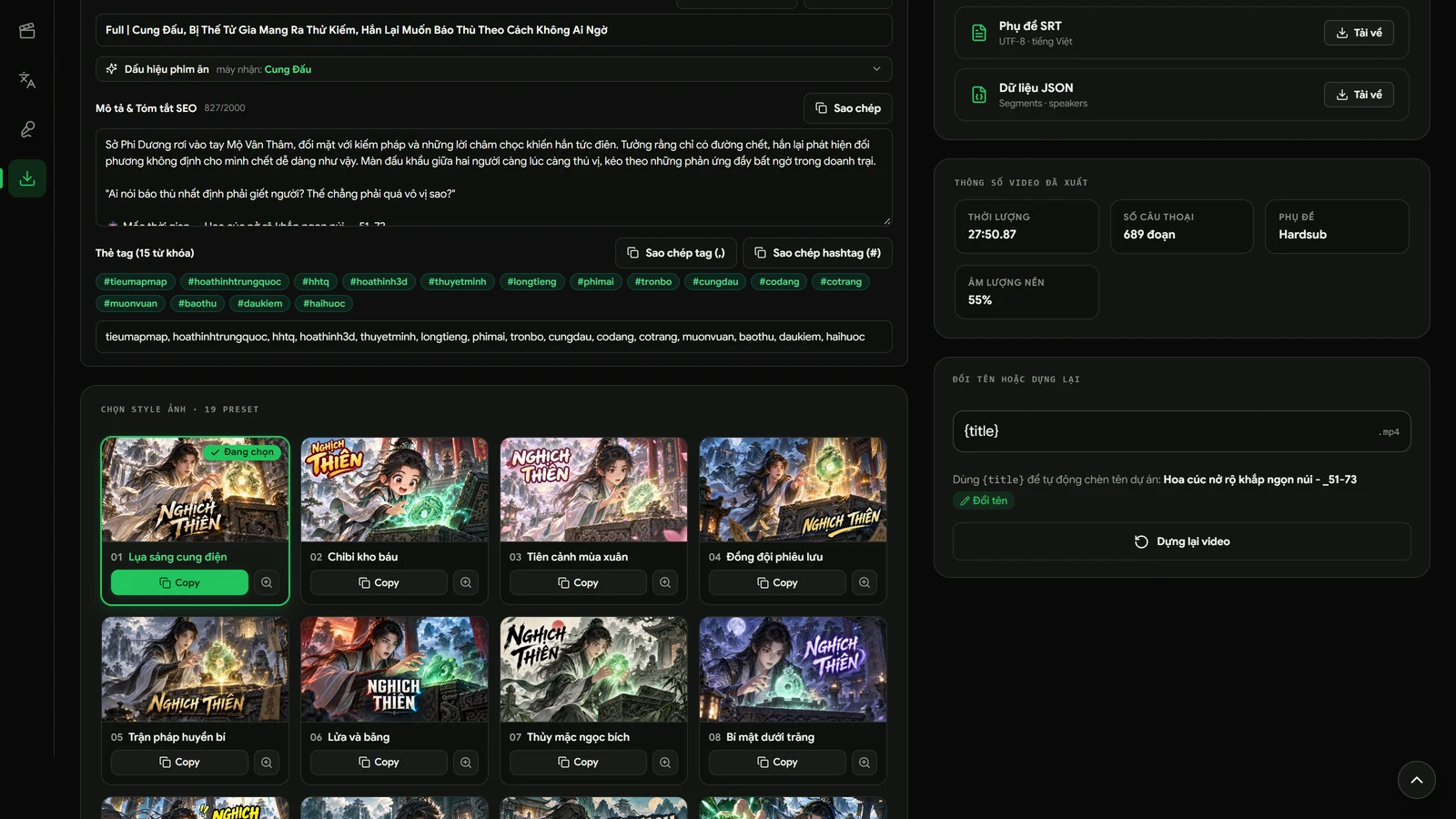
Add your logo and channel name, make a thumbnail and render the MP4.
Exporting with logo, 16:9 frame and thumbnail
Add a logo and channel name, choose the frame and a thumbnail style, then render the video.
Voice-over that follows the picture
Every line is placed on the timing of the line it replaces, so the narration stays in step with the video. Make a line longer or shorter on the timeline to slow it down or speed it up.
Ready to publish
The Export step has what a channel needs:
- Logo and channel name placed clear of the edges
- Landscape 16:9 for YouTube or vertical 9:16 for Shorts
- 19 thumbnail styles made from a frame you choose
- Subtitles burned in, or an SRT file to upload
No per-minute bill
Long reviews and full-film recaps cost the same as a short: the license runs for a period of time with unlimited videos.
Watch DubLocal Studio from start to finish (Vietnamese audio)
The tutorial covers installing, opening a video, transcribing, translating, casting, generating voices and exporting MP4.
Frequently asked questions
Is AI voice-over allowed on YouTube?
YouTube allows synthetic voices; follow its rules on disclosing altered or synthetic content where they apply, and only use footage you have the rights to.
Can I change the reading speed?
Yes. Set the narrator's speed for the whole video (0.8–1.3×) and adjust single lines on the timeline. In fast dialogue a long line is read faster, up to the speed you choose (1.0–1.6×), so two lines never play at once.
Does the original audio stay?
In Narration mode the original audio stays underneath, turned right down, so music and atmosphere remain.
Can I use my own script instead of a translation?
Yes. Every line is editable, so you can write the narration yourself and Studio reads what you wrote.
Which languages can the voice-over be in?
Any of Studio's 10 languages: English, Chinese, Japanese, Korean, Thai, Vietnamese, French, Spanish, Indonesian and German.