
Hit a problem installing or using DubLocal Studio? Fix it in minutes
Each entry below is a situation users run into often, with real screenshots from Studio and the installer, the cause and the steps to fix it. Find yours and follow along.
The screenshots come from the Vietnamese interface, and the installer shows its messages in Vietnamese; they are translated here. Button names in the steps follow the English interface.
The full Studio 1.51 tutorial
Recorded in the real app: a Chinese short-drama episode dubbed into English from start to finish, then every other tool. Click a chapter to watch from there.
One short video per feature
watch it, then do it
Short walkthroughs recorded in the real Studio. Choose a feature to watch on this page; each video shows its narration language.
What's new in Studio
After every update Studio points out what is new as soon as you open it. Here is that list, newest first.
- Version 1.69.0
Choose where projects are kept
Drive C still filling up after exporting to another drive? In Settings → Account → Project folder, pick another drive: source videos and working files move there.
- Version 1.68.0
66 new cartoon and graphic styles
Script to video now has 1950s–60s cartoons, anime, woodblock prints, ink wash, pixel games, 3D and many more. ChatGPT draws the film to your script, with no pictures or clips needed. The first time in each style takes a few minutes.
- Version 1.67.0
Channel profiles, watched folder, scheduled start
One profile per channel: voice, language, subtitles, frame, music, logo, intro, outro, export folder. Pick a profile in Batch, in the Export step or in Script to video and that is all. The Channel profiles window also has a Watched folder: new videos copied into it are dubbed with the profile. Batch has Start at, to run at night for example.
- Version 1.66.0
Series: characters, voices and names carry across episodes
In the project manager, select the episodes and click Group into a series (a series downloaded whole is already grouped). In the Script step, click Series: Studio listens, recognises characters from other episodes and fills in their names and voices; check them and apply. Names already used go into the translations of later episodes. Changing a voice in one episode changes only that episode, unless you choose to use it for later ones.
- Version 1.65.0
Keep the original audio, no more overlapping lines
Film background has a new “Keep the original audio”: no separation, nothing lowered, the dub laid on top. Batch uses the same three Film background choices as a single video (replacing the original-voice slider that had no effect). In fast dialogue, a long line is read faster up to “Speed-up in dense dialogue” (1.0–1.6×) to keep a pause before the next one; if that is not enough, the next line starts up to 1 second later: no more lines running into or over each other. A line still too long is marked, and a batch translates it shorter.
- Version 1.64.0
Change the levels while you listen
Three sliders under the player (background music, the film's own voices, the dub) change the volume while the preview plays, and the export mixes exactly that. A preview made before this version, or one with added music, needs making again once. Shortening long lines runs on the first preview only and can be turned off with “Shorten long lines”. Two-line subtitles are split evenly, no single word left on the second line. On line cards, Play source and Listen to voice sit next to Listen; the window title bar matches the Studio's colours.
- Version 1.63.0
A more compact Studio
Studio is tidier: buttons carry fewer words, and hovering an icon shows its name and what it does. Settings and the tool windows have their tabs in a left column; rarely used parts (publishing conditions, cover styles…) are folded, click to open.
- Version 1.62.0
Batch: delete a batch with its videos
In Batch, click “Manage batches” next to the batch list: select one or more batches (or Select all) and delete them, as in the Project manager. Deleting a batch also deletes its videos; a video that is also in another batch is kept. Finished progress cards and notices now hide themselves after about 10 seconds.
- Version 1.61.0
The voice follows the actors, long lines shorten themselves
Narration no longer drifts off the picture: no line starts more than 1 s after the actor, and subtitles follow the voice. When a preview is made, ChatGPT shortens the lines that would still need more than 1.3x and the preview is made again; batches do the same. New translations keep each Vietnamese line no longer than the source.
- Version 1.60.0
Auto trim music-only parts
Auto trim adds Music-only parts: the music separation AI finds opening themes, scene bridges and end credits while nobody talks, so music likely to get a copyright claim can go. Review each part before cutting. Every auto cut keeps a pause beside the lines, so voice and subtitles stay on the picture.
- Version 1.59.0
Auto trim the open video
In the Script step, click Auto trim: the Timeline opens and Studio marks silences and parts with no speech red on the video track (never where a line is spoken). Click any to keep it, then Cut the red parts; Ctrl+Z brings them all back.
- Version 1.58.0
Delete several lines at once
Click “Select” in the Script tab (Simple or Detailed), tick the lines to drop (Shift + click picks a whole run), then Delete. Ctrl + clicking several cues on the Timeline ticks the same lines. Deleted by mistake? Click Undo.
- Version 1.58.0
Remove music, keep sound effects
When you click Run all in the Script step, Studio asks whether to take out the background music: choose “Remove music, keep sound effects” to drop the music and songs and keep the film's sound effects. It is slower; Studio says how much longer first. Change it later under Export → Audio & background balance.
- Version 1.57.0
Timeline keys like CapCut
Click the timeline, then Space plays/pauses, ← → step one frame, C splits, Q/W cut what comes before/after the playhead, Ctrl+C/Ctrl+V copy/paste lines. Ctrl/Shift + click or Shift + drag a box to select several lines, then drag or delete them together. Select one line and press C to split it at the playhead. Deleting a video piece no longer cuts the voices: they read on across the join, and the lines after move later if they would overlap.
- Version 1.56.0
Cut the video right on the timeline
The timeline sits at the bottom with a video track, like CapCut: Split at the playhead (it snaps to line edges), click a piece and press Delete to remove it for good, the next piece snaps onto the one before; Ctrl+Z brings it back. Drag the background to move along, Ctrl + scroll to zoom. New narration leaves a 0.3 s pause between lines, adjustable.
- Version 1.55.0
Translate by genre and your own style
Quick translate now has Film review, Travel, Tech review, Product / sales, Food and Knowledge, plus a reading style (cheeky, funny, cheerful…) and a script or keywords (e.g. sale 599k now 299k). A video with no speech (a review, a screen recording): the Write a review script tab has ChatGPT look at the frames and write narration that fits the video's length.
- Version 1.55.0
Cover info on the video
Press Cover info under the player and drag to cover an address, a phone number or a name. Set its start and end from the current moment; the exported video blurs exactly that area.
- Version 1.55.0
Animated arrows
Press Arrows under the player and drag to draw an arrow pointing at a product or a price. It bounces and plays a “ding” when it appears; set its direction, color and timing in the list below.
- Version 1.54.0
English narration in English voices
Choose English as the output and the voice box switches to an English voice from the Voices tab (Emma, James…), in Batch dubbing, inside a project, Video from a script and Text to speech. Press Listen to hear one first.
- Version 1.53.0
Voice library by language
The Voices step has a language row and opens on the dubbing language: an English project shows its English voices first. Sample voices of other languages appear here as the voice library gets them.
- Version 1.53.0
The same background music everywhere
Script to video, Batch dubbing and the Export step share one background music block: the same library, listen button and volume; music you upload works in all three.
- Version 1.52.0
Studio in English
Settings → Account → Interface language switches Studio between Vietnamese and English. A new install on an English Windows opens in English; an account that already uses Vietnamese keeps Vietnamese.
- Version 1.51.0
Subtitles: text colour, outline, weight, capitals
In the script tab's preview settings (the Subtitles box now comes first and takes less room), Batch and Video from a script: pick the text and outline colours on a colour wheel, the outline's thickness, the font's real weight (Medium to Black, downloaded when needed), Bold and Capitals. The preview changes at once and the exported video matches it; colours you used are kept for a quick pick.
- Version 1.50.0
Script videos: YouTube titles, description, tags and thumbnails
Once a video is made, ChatGPT writes its YouTube copy: 4 scored titles (a main one and three to try in YouTube's Test & compare), a thumbnail prompt for each title, a description with chapters (times taken from the video itself) and hashtags, and tags — in the script's language. Press “Titles & description” on a finished video to see, copy, rewrite the title, or copy the request to ChatGPT yourself if Studio isn't connected. Switch it off in Advanced options.
- Version 1.50.0
Batches: YouTube titles, description, tags and thumbnails for every video
Batch dubbing/narration: once a video's MP4 is out, ChatGPT writes its title, description with timestamps, hashtags, tags and 5 titles, exactly as the Export step does (the video's Export step shows them too). Press “Titles & description” on an exported video to copy, rewrite, or pick up to 3 titles for thumbnail prompts in the Export step's image style, with 2 reference frames. Switch it on or off in the batch settings.
- Version 1.49.0
Video from a script: 8 languages, more picture sources
Pick the script's language: Vietnamese, English, German, French, Spanish, Indonesian, Japanese or Korean; Studio reads it with your voice as the MP3 tool does, with subtitles and on-screen words in that language (Map, Red circle, Case file, Timeline, Countdown and Versus stay Vietnamese for now). When the stock library is out of searches or finds nothing, Studio keeps looking on the web from your computer: pictures and 5.5-second clips. Each picture's source is in the .credits.txt file; check the rights before you publish.
- Version 1.48.0
Script to video: 18 looks, videos up to 30 minutes
Five new looks: Red circle, Case file, Countdown, Versus and Timeline. Videos can run 10–30 minutes. Your pictures and videos come first (a long video is cut into several clips); scenes still without a picture get them from the picture libraries, then from YouTube and Bilibili clips. The drawn looks paint from masters' paintings. The window shows the picture searches left today; words on the picture no longer cover the subtitles or get cut off.
- Version 1.47.0
Video from a script
Click Script to video, paste a script (or several at once) and pick one of 13 looks: a map drawn for you, moving photo, archive, comic, pencil, watercolour… Studio narrates it with VieNeu, ChatGPT plans the scenes, pictures and clips are found for each sentence, and music, sound effects, subtitles and your channel logo are added. You can add your own pictures, videos or video links.
- Version 1.46.0
UK/US film sources
Click UK/US in the source picker: Internet Archive, PeerTube, Plex, Shout! TV, FilmOn and the free episodes of ReelShort, DramaBox, GoodShort, FlexTV, NetShort and MoboReels, one video or a whole series. Projects from these sources start as English → Vietnamese. Studio also keeps yt-dlp up to date, adds AcFun, and finds Hongguo series by name again.
- Version 1.45.0
Always know what's new
After every update Studio points out on screen just what is new, with a New dot on each button until you try it. See it again any time in Settings → Guide.
- Version 1.44.0
More video sources
Paste a Douyin, Kuaishou, Bilibili, Xiaohongshu, Weibo, Toutiao/Xigua or Mango TV link to download it. The Hongguo catalog sorts by newest, most watched and top rated.
- Version 1.42.0
Download and edit videos in one window
Download, merge, split, cut Shorts with a hook and preview, right inside Studio. Available during VIP time.
- Version 1.41.0
Voice tool, no video needed
Paste text or pick several SRT/TXT files and Studio reads them into MP3s, Thai and Chinese included.
- Version 1.36.0
9:16 vertical export, subtitle fonts
A 9:16 frame on a blurred or black backdrop, source captions in several positions. Pick a subtitle font: Studio downloads it when needed and keeps it as the default.
- Version 1.35.1
Batch: preview beside the settings
The batch's frame, logo and subtitles show right next to their controls as you change them.
- Version 1.35.0
New voices
The Van Toan narrator voice for VieNeu, and English voices for OmniVoice, picked by the dubbing language.
What are you running into?
Problems while installing
You meet these while downloading and running the installer, or the first time Studio installs the AI engine. Each entry shows the message you will see: search for that text to find the fix.
Windows warns about the installer
Windows warns that “the publisher could not be verified” when you run the installer
The installer is new and has few downloads, so Windows does not recognize its publisher yet: you see the warning dialog in the picture, or the blue “Windows protected your PC” screen (SmartScreen). Antivirus software may also block or delete the file. You only need to be sure you downloaded the installer from dublocal.link itself.
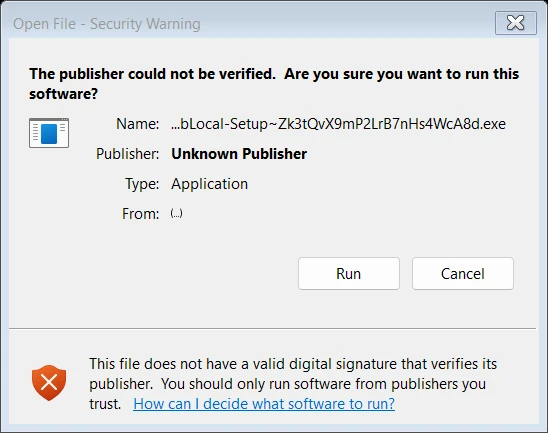
The message you will see
The publisher could not be verified. Are you sure you want to run this software?
How to fix it
- Only download the installer from your Account page on dublocal.link.
- In the warning dialog from the picture (Publisher: Unknown Publisher), press Run.
- If you see the blue “Windows protected your PC” screen: press More info, then Run anyway.
- If antivirus software deleted or blocked the file: restore it from quarantine, add the installer and the DubLocal folder to the exclusion list, then run it again.
Installer expired or renamed
The installer says it has expired, was renamed, or your account has no license
Every installer downloaded from your account carries a personal code in its file name (like DubLocal-Setup~code.exe). If the code is too old, was removed from the name, or the account has no license, the server refuses to hand over the installation files.
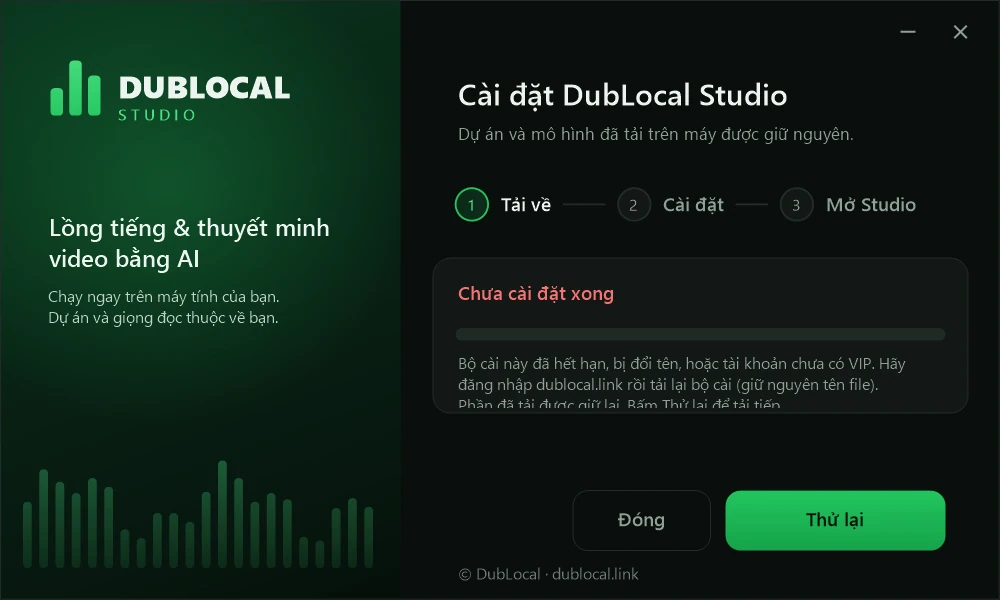
The message you will see
This installer has expired, was renamed, or the account has no license. Sign in to dublocal.link and download the installer again (keep the file name).
How to fix it
- Sign in at dublocal.link and check your Account page: the license must be active.
- Delete the old installer and download a new one from the Account page.
- Keep the file name as it is; don't cut or change the ~code part. A “(1)” that your browser adds for a second download is fine.
- Run the installer right after it has downloaded.
Certificate, network or proxy error
The installer cannot connect securely to the DubLocal server
This is usually caused by the PC itself: a wrong system clock, a Windows proxy that is switched on, or a VPN or antivirus interfering with the connection. The installer has a built-in repair.
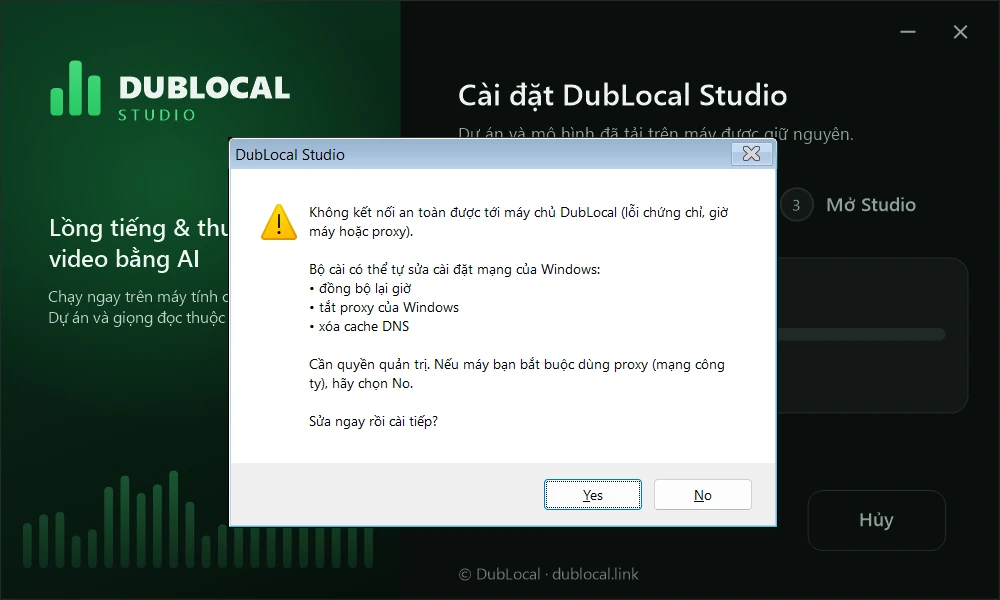
The message you will see
Cannot connect securely to the DubLocal server (certificate error, the PC's clock or a proxy).
How to fix it
- Press Yes when the installer asks “Fix it now and continue?”. It syncs the clock, turns off the Windows proxy and clears the DNS cache; Windows asks for administrator rights, so choose Yes.
- Does your PC have to use a proxy (a company network)? Choose No and ask your network admin to allow dublocal.link.
- If it says the network was repaired but it still fails: switch off your VPN (and your antivirus's connection scanning, if it has any) for a moment, then press Retry.
White Studio window, missing WebView2
Studio shows no window, or says the Microsoft Edge WebView2 Runtime is missing
Studio draws its window with the Microsoft Edge WebView2 Runtime. A PC that lacks it, or has a broken copy, shows a white window or the message below. The installer downloads and installs it for you.
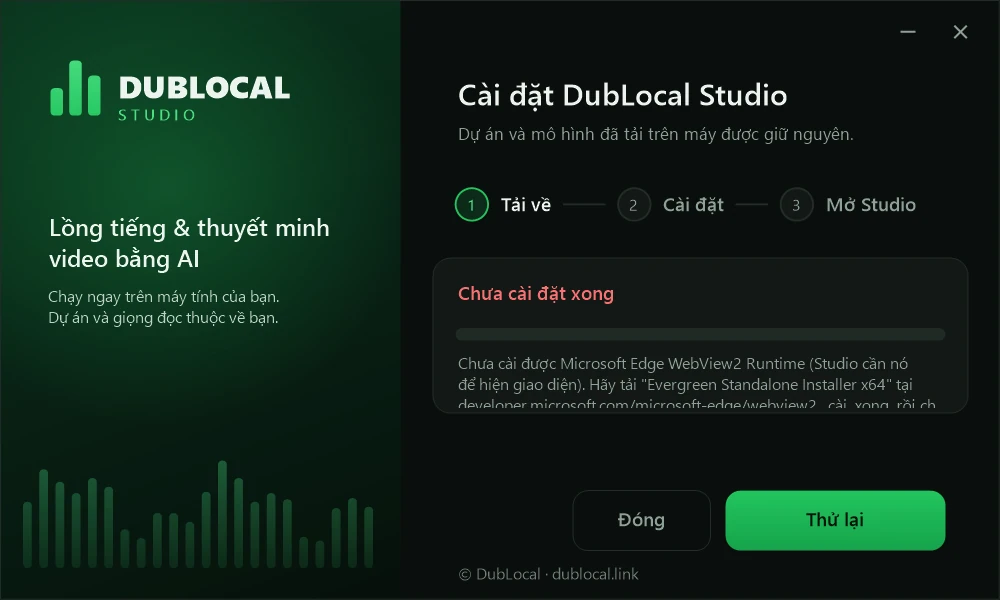
The message you will see
This computer is missing the Microsoft Edge WebView2 Runtime, so Studio cannot show its window.
How to fix it
- Run the installer again and press install. It downloads WebView2 (about 210 MB) and installs it; press Yes when Windows asks for administrator rights.
- If it says the Microsoft Edge WebView2 Runtime could not be downloaded: check your network and try again.
- If it says administrator permission is needed: press Retry, then choose Yes.
- Still failing: download the “Evergreen Standalone Installer x64” from developer.microsoft.com/microsoft-edge/webview2, install it, then run the DubLocal installer again.
Installer says Studio is open
The installer says “DubLocal Studio is open” or “cannot write the file”
The installer cannot overwrite files while Studio, or another program, is holding them.
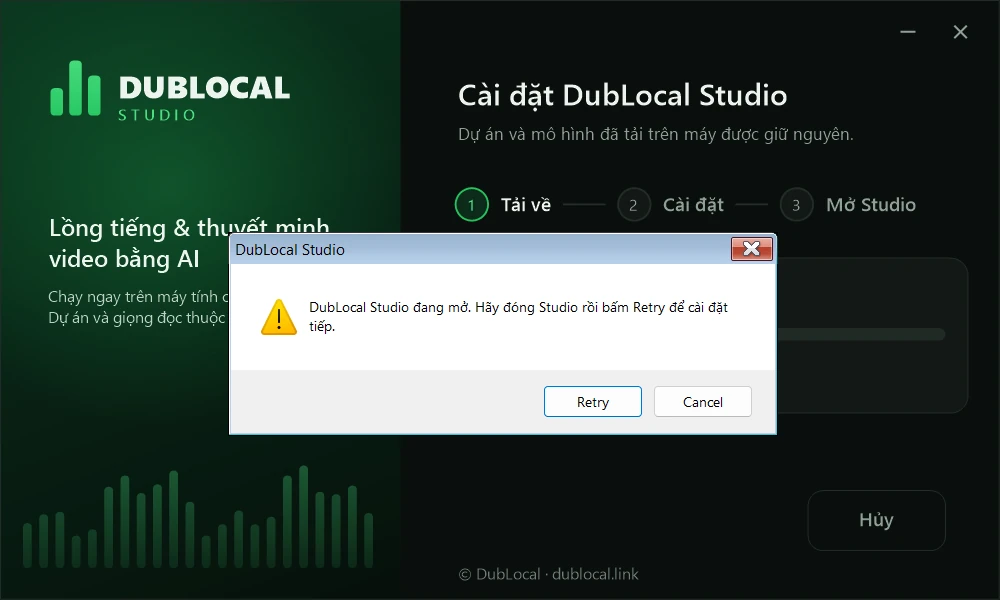
The message you will see
DubLocal Studio is open. Close Studio, then press Retry to continue installing.
How to fix it
- Close every DubLocal Studio window.
- Go back to the installer and press Retry.
- If it says it cannot write a file: close Studio and try again. If the file stays locked, add the DubLocal folder to your antivirus exclusion list (it may be scanning those files).
Install folder, full drive
The installer refuses the folder, or the drive is almost full
Studio and the AI models need room: the installer counts on about 16 GB free. It also refuses places that need administrator rights and anything that is not a hard drive inside the PC.
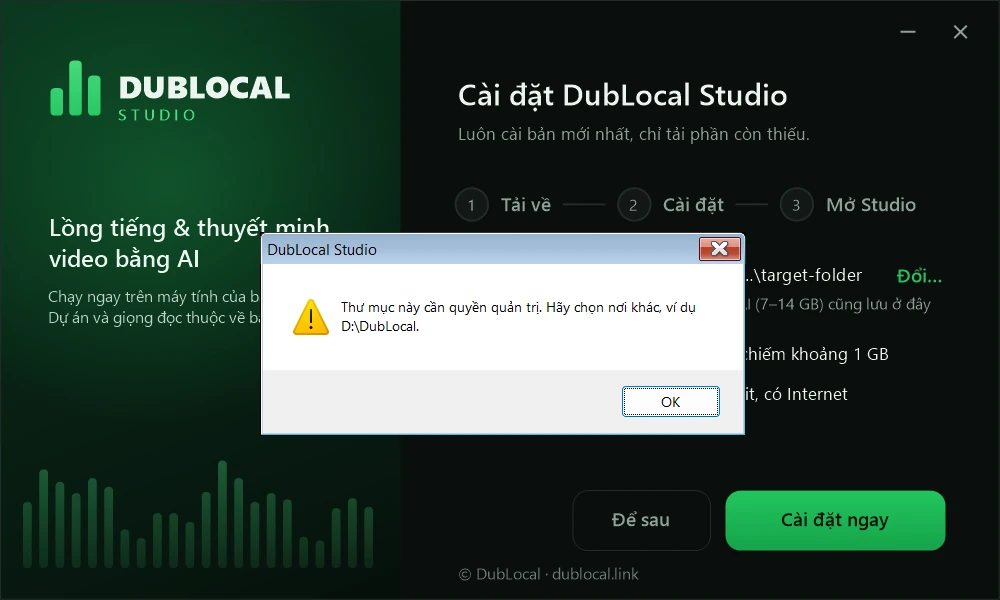
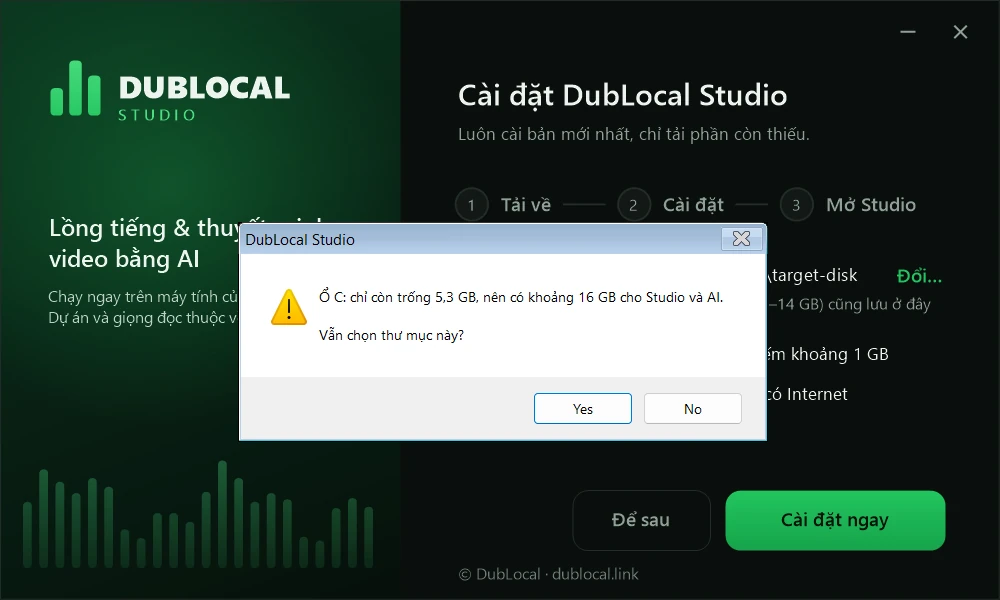
The message you will see
This folder needs administrator rights. Choose another place, for example D:\DubLocal.
How to fix it
- Press change folder and pick an empty folder on a hard drive in the PC, for example D:\DubLocal.
- Don't pick a network folder, a drive that isn't ready, or a place inside Windows or Program Files.
- If it warns that the drive has only a few GB free: clear space on it or pick another drive with more room.
- Keep the folder name short: a path that is too long also makes the installation fail.
AI engine setup says “pip failed”
Installing the AI engine in Studio says “pip failed”
The first time you open Studio you install the AI engine (a few GB). If that stops halfway, Studio shows “pip failed” with a hint for the cause. Fix it, then press install again.
pip failed: … The disk is full: free a few GB on the Studio drive and drive C (the TEMP folder), then press install again.
How to fix it
- The disk is full: free a few GB on the Studio drive and on drive C (the TEMP folder).
- A file is locked: close other DubLocal windows and add the DubLocal folder to your antivirus exclusion list.
- The path is too long: install Studio in a shorter folder, for example D:\DubLocal.
- The network dropped while downloading a package: check your connection.
Invalid update list or signature
The installer says “update list invalid” or “signature does not match”
The installer checks the signature of every file to be sure it is the official DubLocal build. A half-downloaded file, or one tampered with on the way, is refused; and sometimes the server is simply publishing a new version.
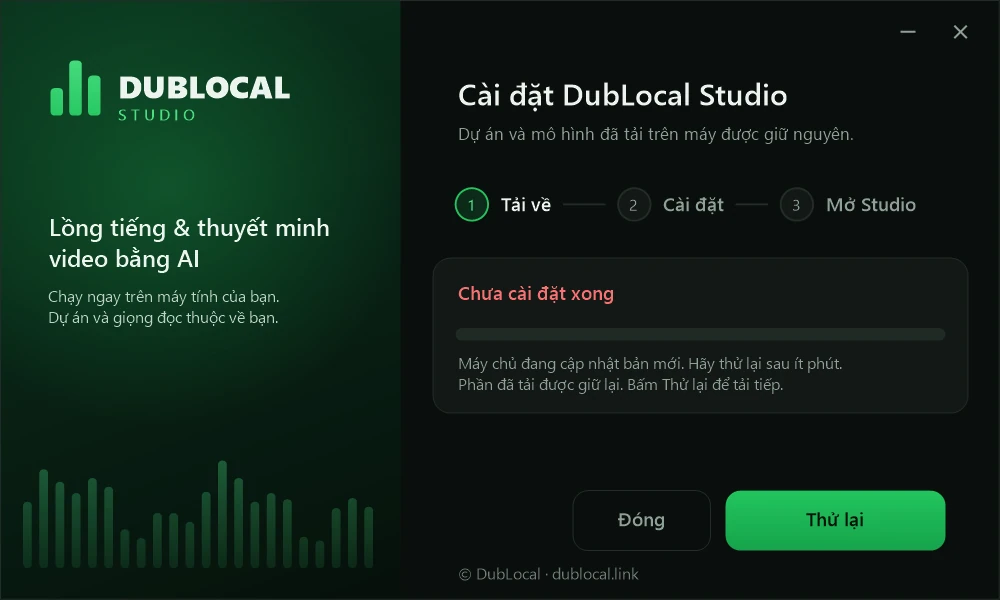
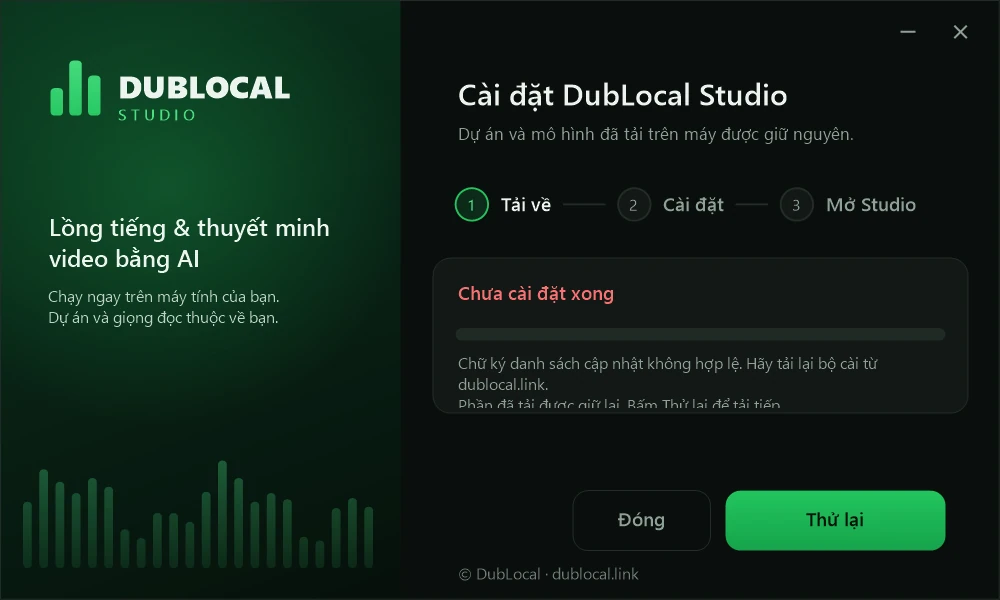
The message you will see
The signature of the update list is invalid. Download the installer again from dublocal.link.
How to fix it
- If it says the server is updating to a new version: wait a few minutes and try again.
- If it says the signature does not match or the update list is invalid: switch off your VPN (and your antivirus's connection scanning, if it has any) for a moment, then install again.
- Still failing: download a new installer from your Account page on dublocal.link and run it.
Errors Studio reports itself, and how to fix them
The red error cards shown inside Studio. Studio already suggests a fix with a button; this section explains each message, using the wording Studio shows.
Missing AI parts, missing FFmpeg
Studio says “The AI for this step is not fully installed” or “FFmpeg is not installed”
Studio downloads each AI part to your PC when it is needed. When one is missing, the step that uses it stops and shows an error card; press the suggested button (Open Install AI) to land on the right place.
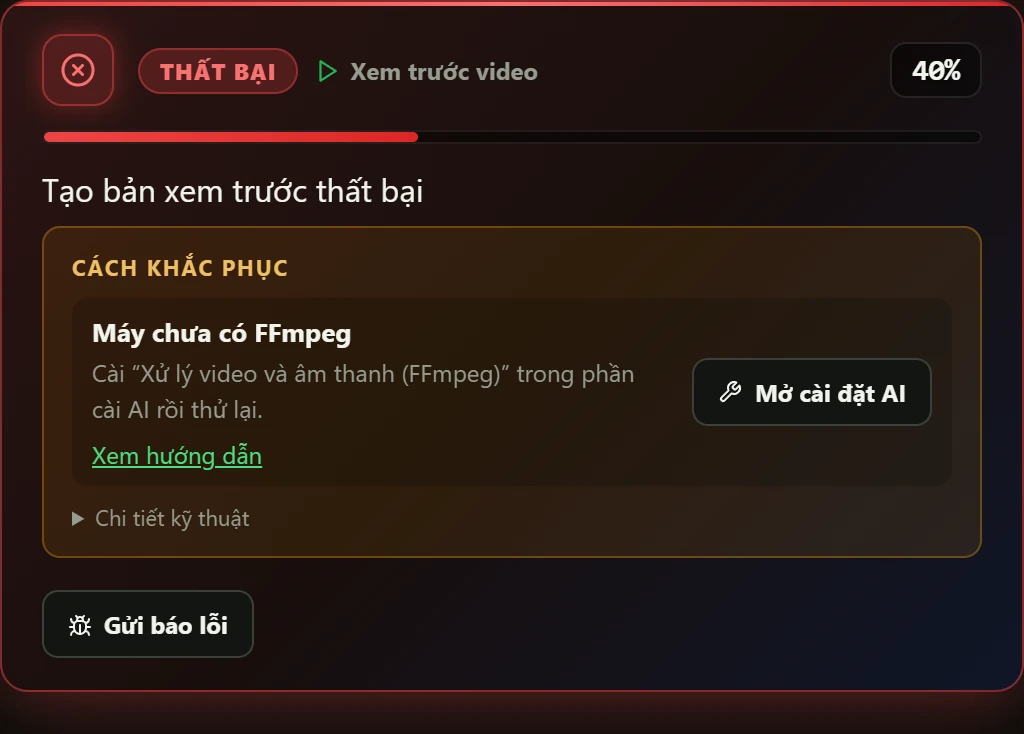
The message you will see
The AI for this step is not fully installed FFmpeg is not installed The Vietnamese voice generator is not fully installed
How to fix it
- Press Open Install AI in the error card (or open Install AI in Studio).
- Install the current setup again: Studio only downloads the missing parts.
- If FFmpeg is missing: open Install AI and install the current setup; Studio downloads FFmpeg with anything else missing, then try again.
Voice separation, graphics card
Voice and music separation fails, or the graphics card runs out of memory
Separating the original voice from the music needs a lot of memory, especially on the graphics card. When it fails, Studio names the cause and suggests how to carry on.
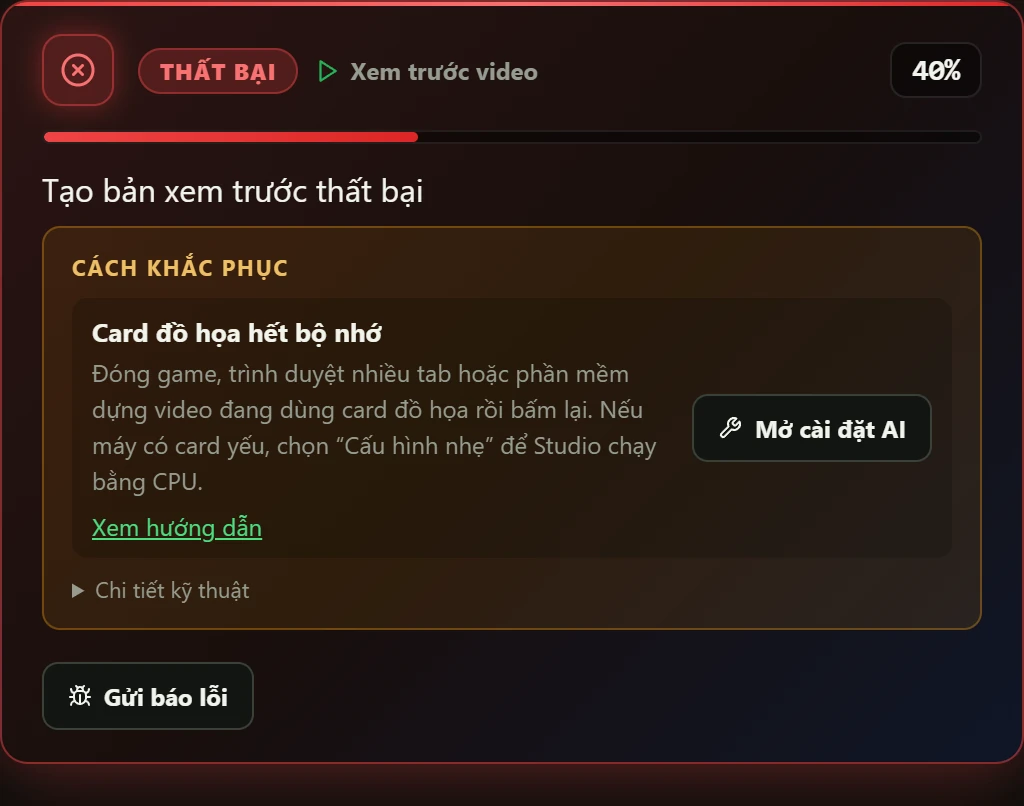
The message you will see
Voice and music separation is incomplete The voice separator ran out of memory The graphics card is out of memory The graphics card can't be used yet Voice and music separation failed
How to fix it
- Separation not installed: install “Separate voice and music (MDX-Net ONNX)” in Install AI; Studio separates them by itself when it makes the preview.
- Out of memory: close games, browsers with many tabs or video editors that use the graphics card, then press it again. If the card is weak, choose “Light setup” so Studio runs on the CPU.
- Graphics card can't be used: update the NVIDIA driver, then reopen Studio; meanwhile choose “Light setup”.
- Still failing: look at “Technical details” and press “Report a problem”. For Narration, pick the “Lower original audio · Fast” background to render right away without separating.
Full disk, file in use
Studio says “The disk is full” or “Another app is holding the file”
Making a video creates many temporary files. When there is no free space, another program has the file open, or the folder does not allow writing, Studio cannot write.
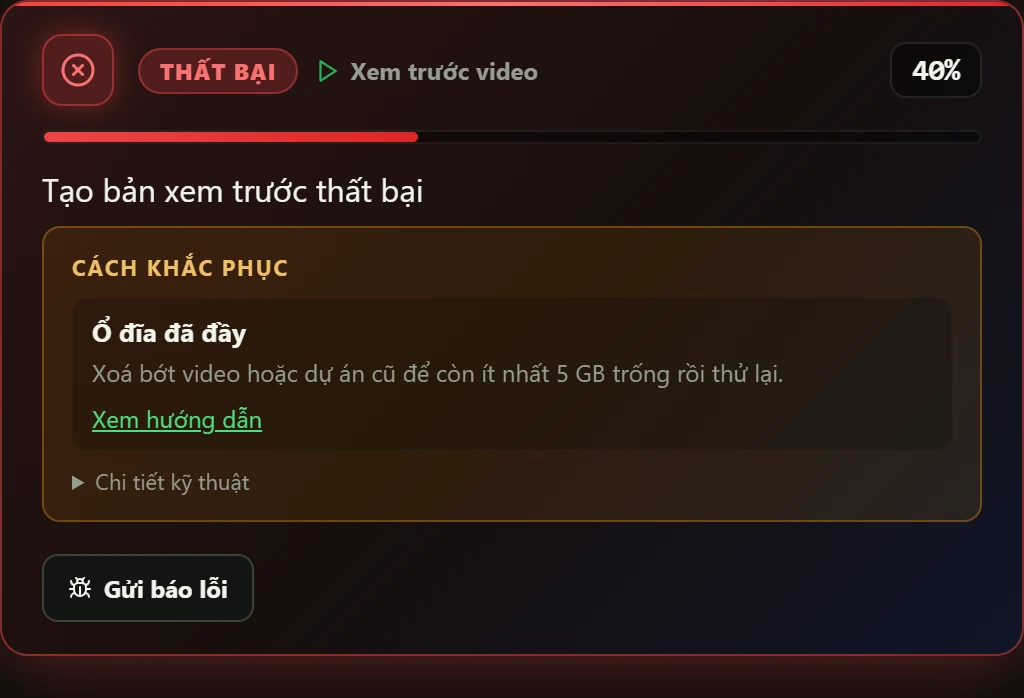
The message you will see
The disk is full Another app is holding the file Studio isn't allowed to write here
How to fix it
- The disk is full: delete some old videos or projects so the project drive keeps at least 5 GB free, free space on the AI drive too, then try again. If drive C keeps filling up, move your projects to another drive in Settings → Account → Project folder. The video folder only gets a copy of each finished video, so choosing it doesn't lighten drive C.
- The file is held: close the video player, folder or app that has the file open (antivirus software may be scanning it), then try again.
- Not allowed to write: choose another save folder, turn off the file's read-only setting, or allow DubLocal Studio in your antivirus software, then try again. Studio shows the blocked path right in the message.
Video link will not download
Studio says “Couldn't download the video from this link” or “The video file may be damaged”
A private or deleted link, a region block, or a half-downloaded file all stop Studio from reading the video.
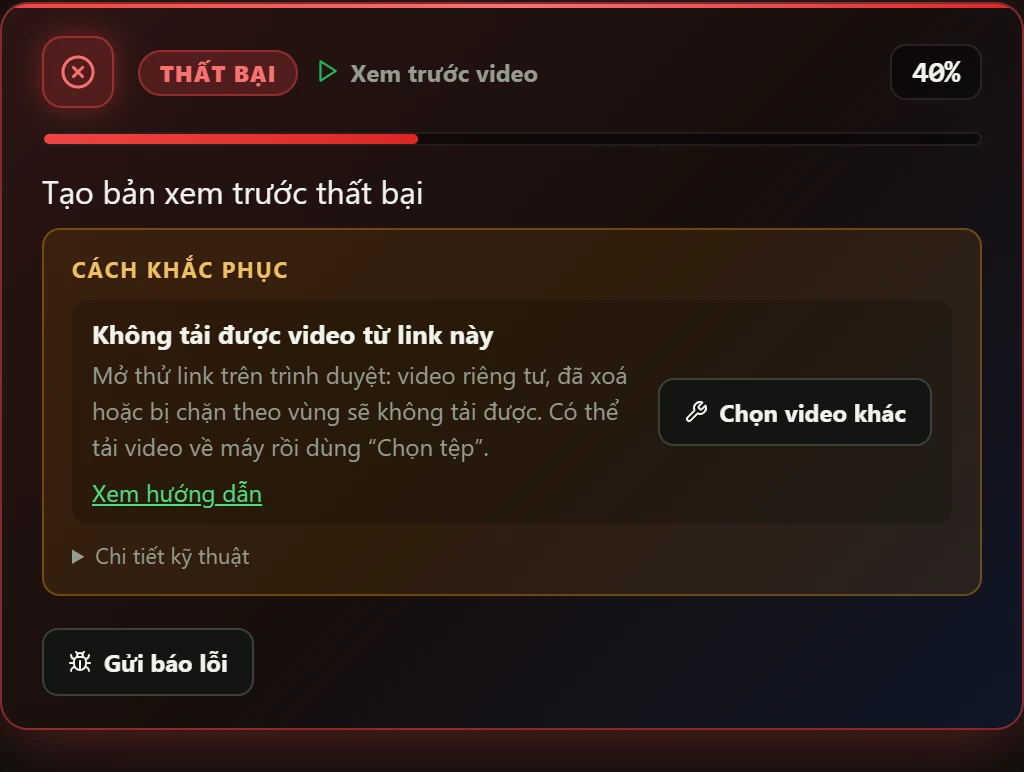
The message you will see
Couldn't download the video from this link The video file may be damaged or not fully downloaded
How to fix it
- Try opening the link in your browser: private, deleted or region-blocked videos can't be downloaded.
- Download the video to your computer and use Choose file.
- If the file is damaged or incomplete: download the video again and re-import it. If it still plays, try Make a light preview copy so Studio reads the file again.
- The source asks you to sign in or verify: Studio opens a window of its own; sign in or complete the check in that window and Studio carries on by itself (it waits up to 5 minutes).
Voice generation errors
Voice generation says “This character has no usable narration voice yet” or “The voice generator stopped partway”
Every character needs a suitable voice (the right gender, Vietnamese) before the voice can be created.
This character has no usable narration voice yet The selected voice is a male voice but the character speaks in a female voice The voice generator stopped partway
How to fix it
- No usable voice: pick a voice from the voice library for the character; press Choose voice in the error card to jump to the right character.
- Gender mismatch: pick a voice of the same gender as the character (male or female).
- The voice is not Vietnamese, or does not say male or female: pick another Vietnamese voice from the voice library.
- The voice generator stopped partway: press create again; if it still fails, quit Studio completely (including the icon in the system tray), then reopen it.
ChatGPT not connected, usage limit
Translation says “ChatGPT is not connected” or “ChatGPT is limiting your usage”
Studio translates with your own ChatGPT account, so you must be signed in and have usage left.
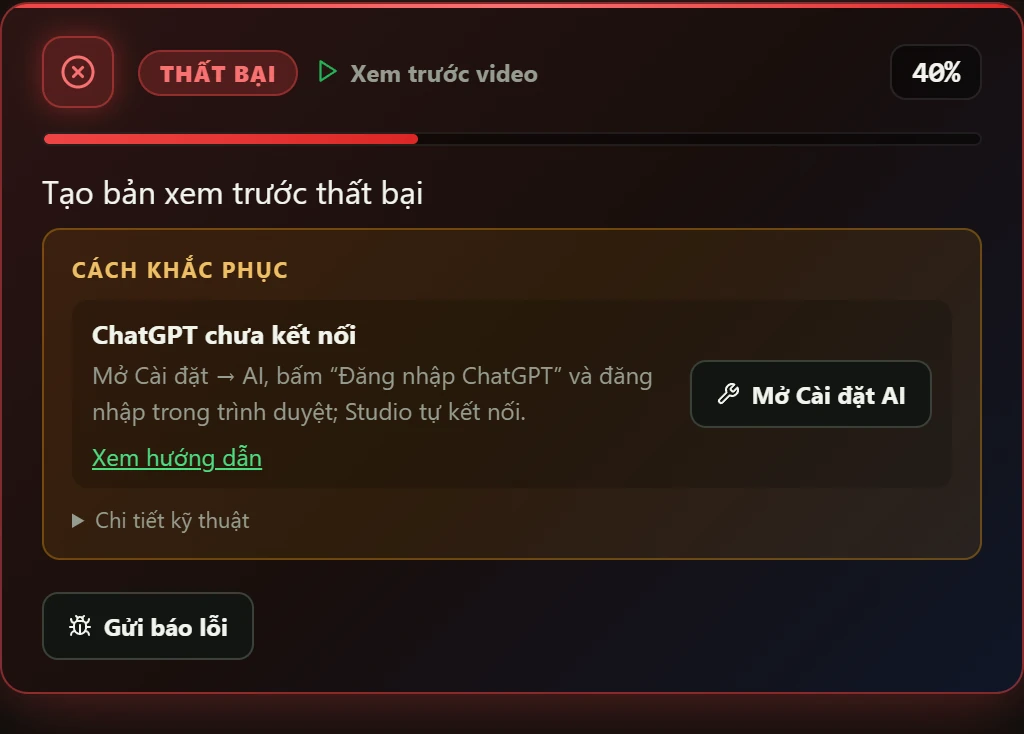
The message you will see
ChatGPT is not connected ChatGPT is limiting your usage The ChatGPT sign-in has expired No internet connection ChatGPT didn't answer the test message
How to fix it
- Not connected: open Settings → AI, press “Sign in to ChatGPT” and sign in in your browser; Studio connects by itself. Does ChatGPT ask for a phone number? See “ChatGPT asks for your phone number” below.
- Usage limited: wait a few minutes, then press it again. Free accounts have tighter limits; choose the “ChatGPT Luna” mode if you are using the deep-thinking mode.
- No internet connection: check your Wi-Fi or network cable; turn off any VPN or network blocker, then press it again.
- The sign-in has expired: sign in to ChatGPT again in Settings → AI.
- No answer to the test message: before a batch runs, Studio sends ChatGPT a short message to be sure translation works. Open Settings → AI, sign in again if needed, then run it again.
Account, license, PC clock
Studio says the VIP plan expired, the account is on too many computers, or the PC clock is wrong
Studio checks your account and plan with the DubLocal server. The suggested button in the error card opens the Account page directly.
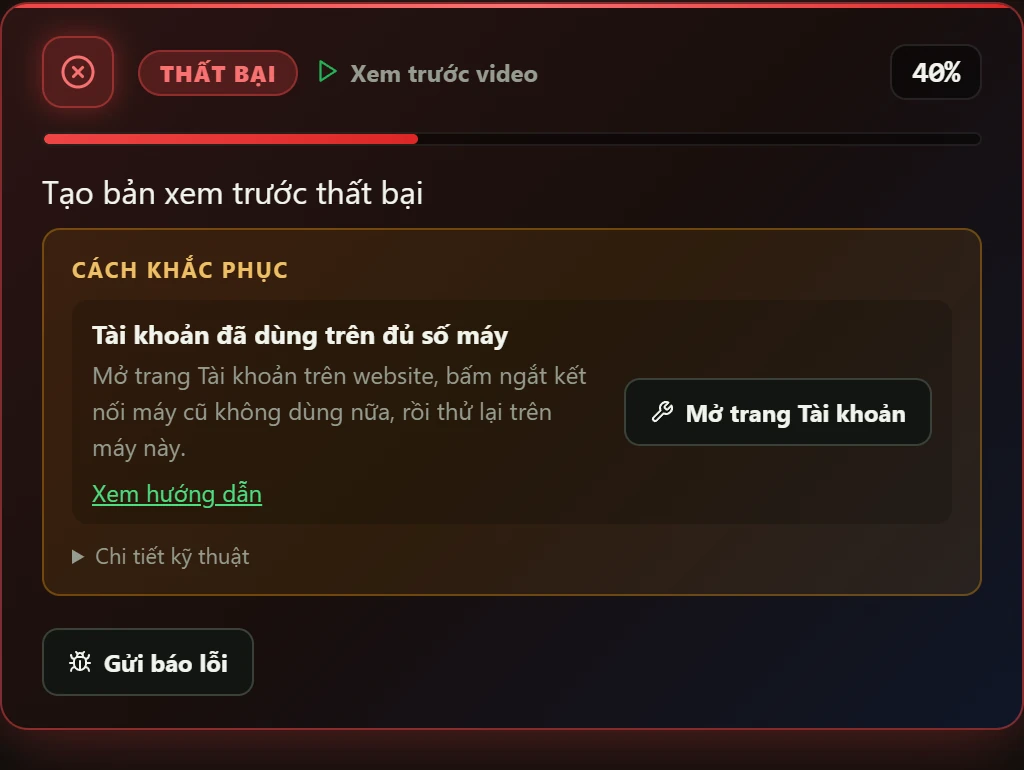
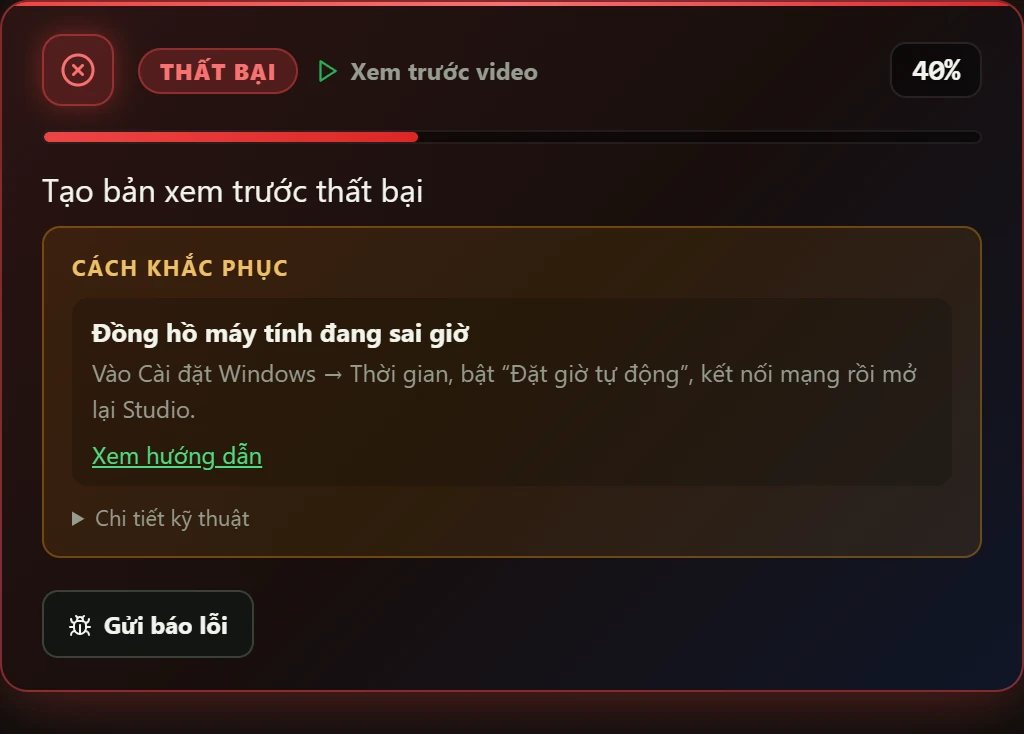
The message you will see
Your VIP plan has expired or isn't activated This account is already used on the maximum number of computers The computer clock is wrong Too many attempts
How to fix it
- Plan expired or not activated: open the Account page to renew VIP or enter a VIP code (and verify your email if asked), then press it again. Old projects can still be opened.
- Used on the maximum number of computers: open the Account page on the website, disconnect an old computer you no longer use, then try again on this one.
- The computer clock is wrong: go to Windows Settings → Time, turn on “Set time automatically”, connect to the internet, then reopen Studio.
- Too many attempts: wait about a minute, then try again.
No dialogue, missing video
Studio says “No dialogue yet”, “The project has no video” or “Some lines are not translated yet”
The steps in Studio go in order: video, speech recognition, translation, casting, voice. These messages mean a step before this one is still missing.
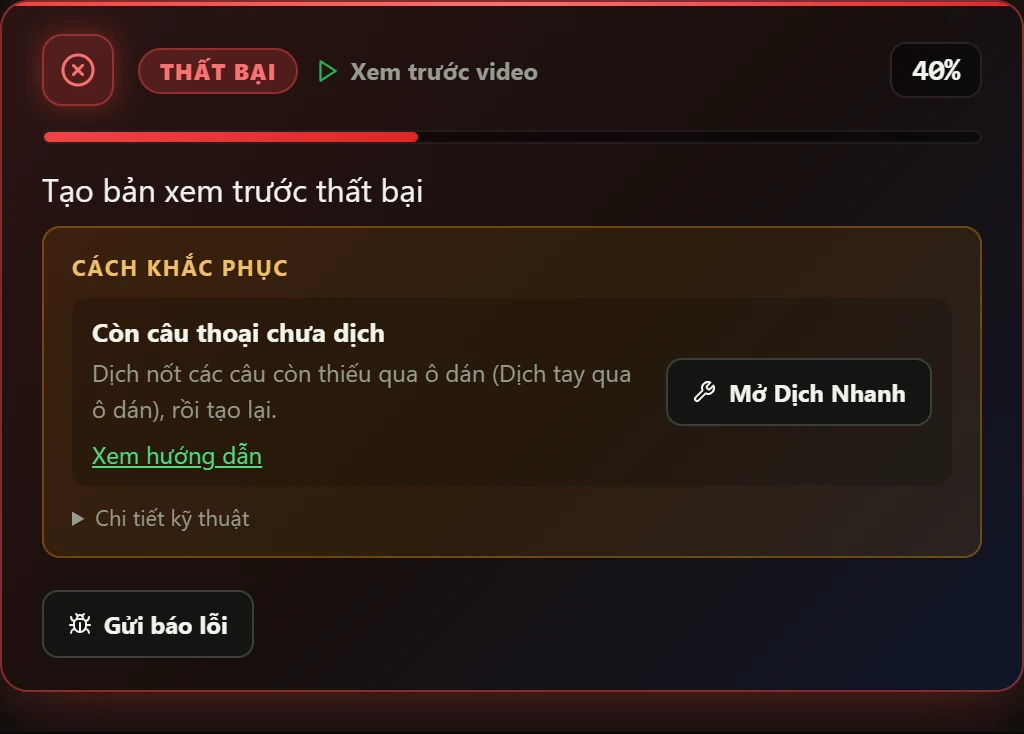
The message you will see
No dialogue yet The project has no video The voices need casting again Some lines are not translated yet
How to fix it
- No dialogue yet: on the Script step press “Run all” so Studio recognizes the dialogue and characters from the video.
- The project has no video: choose the video file for the project again (the Choose video button).
- The voices need casting again: run “Cast voices” so Studio recognizes the characters and gender of each line again.
- Some lines are not translated: translate the missing lines through the paste box (Translate by hand via paste box), then create it again.
Common problems and how to fix them
The three situations that stop users most often. Each fix is short.
Internal Server Error
“Internal Server Error” when running Batch dubbing
You start a batch and a red bar shows “Internal Server Error”, and the batch stops. Most of the time the cause is the video's file name, not your PC or your account.
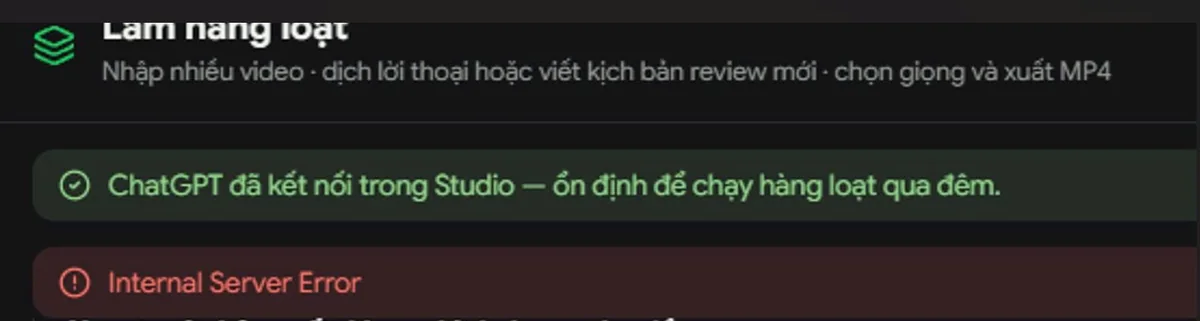
Cause
A video file name that is too long, or written in Vietnamese with accents, triggers this error.
How to fix it
- Open the folder that holds the videos that fail.
- Rename each file to something short and plain, without accents, like movie01.mp4, movie02.mp4.
- Add the renamed videos to Batch dubbing again and run the batch.
Flipped, zoomed or recolored video
The exported video is mirrored, zoomed in or recolored
Don't worry, your video is not broken. Studio has a Copyright protection mode: when it is on, it mirrors, zooms and color-adjusts the picture on export. To keep the video exactly as it is, turn it off.
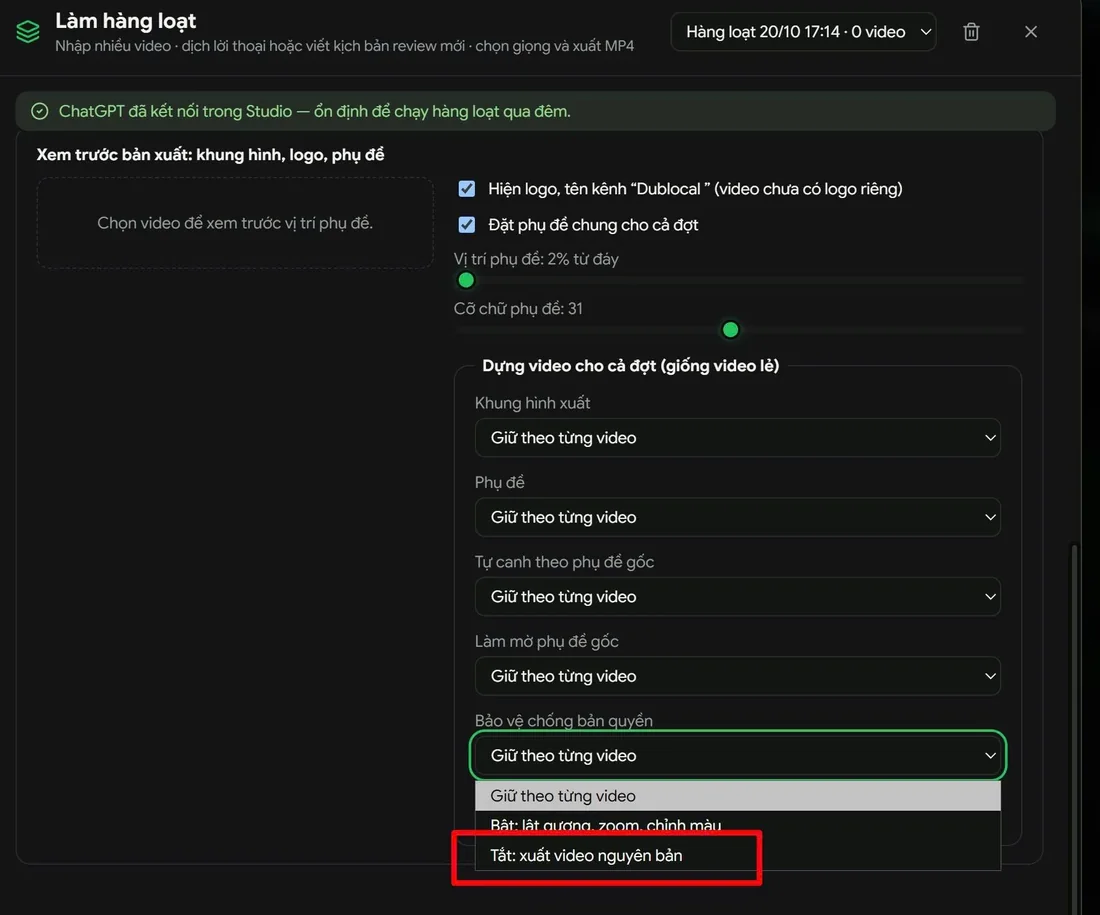
How to fix it
- In the Batch dubbing window, scroll down to Render settings for the whole batch.
- Open the Copyright protection list.
- Choose Off: export the video as is.
- Run the batch: videos come out the right way round, with no zoom and no color change.
ChatGPT asks for a phone number
ChatGPT asks for your phone number when you sign in
Studio translates dialogue with your own ChatGPT account. When you connect it, ChatGPT may show a “Check your phone” screen to verify your phone number. That is a ChatGPT security step, not a DubLocal error.
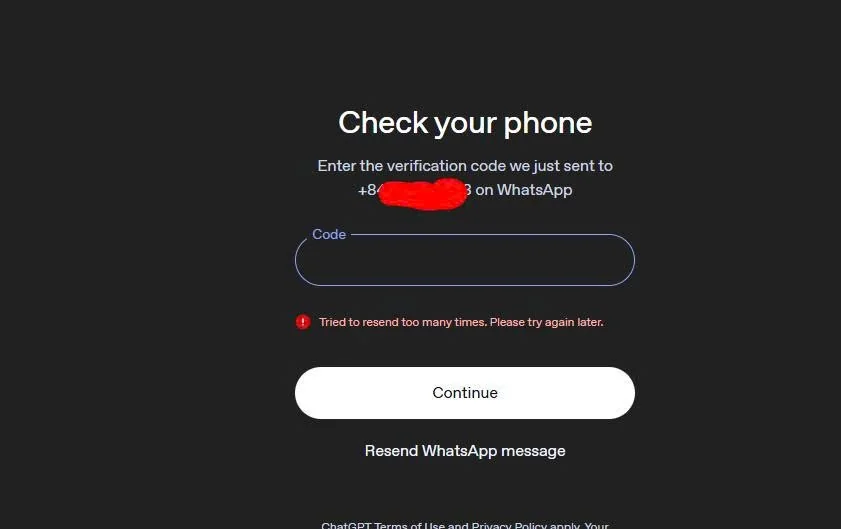
How to fix it
- Enter your phone number when ChatGPT asks for it.
- Open WhatsApp on your phone (ChatGPT sends the verification code there), type the code into the Code box and press Continue.
- Once you are signed in, go back to Studio.
- If you see the red line Tried to resend too many times: you pressed resend too often. Stop, wait a while, then try again, and don't keep pressing “Resend”.
Make your videos look and sound better
Not errors, but getting these three settings right makes a video look far more professional.
Original audio and narration
Keep a little original sound so videos don't feel “dry”
Mute the original audio completely and the video sounds empty and dull. Leave a little of it in the background and the video gets the feel of a real film. To hear the video exactly as it was, choose Keep the original audio.
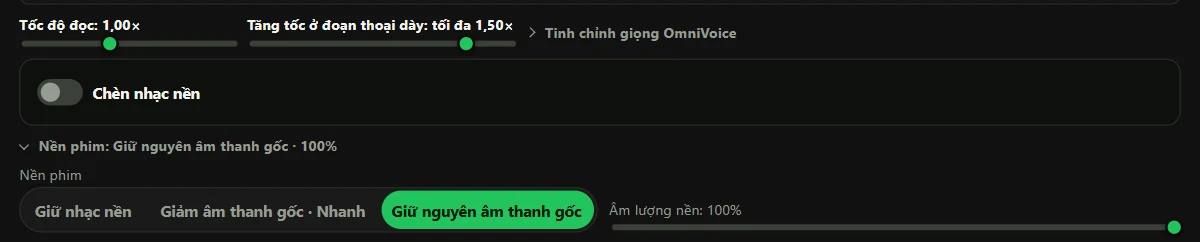
How to do it
- In Film background, choose Keep background music (original voice out, music and effects kept), Lower original audio · Fast (no separation, the original voice lowered under the narration) or Keep the original audio (no separation, nothing lowered, the narration laid on top).
- Drag Background volume up to about 10–15% for some atmosphere. Keep the original audio sets it to 100% by itself.
- Export one video, listen, and nudge the values a few percent until it sounds right.
Subtitles for a whole batch
Set subtitles once for the whole batch
Adjusting subtitles video by video takes all afternoon. Batch dubbing has a preview right in the window: drag two sliders, the subtitles of the whole batch follow and you see the result at once.
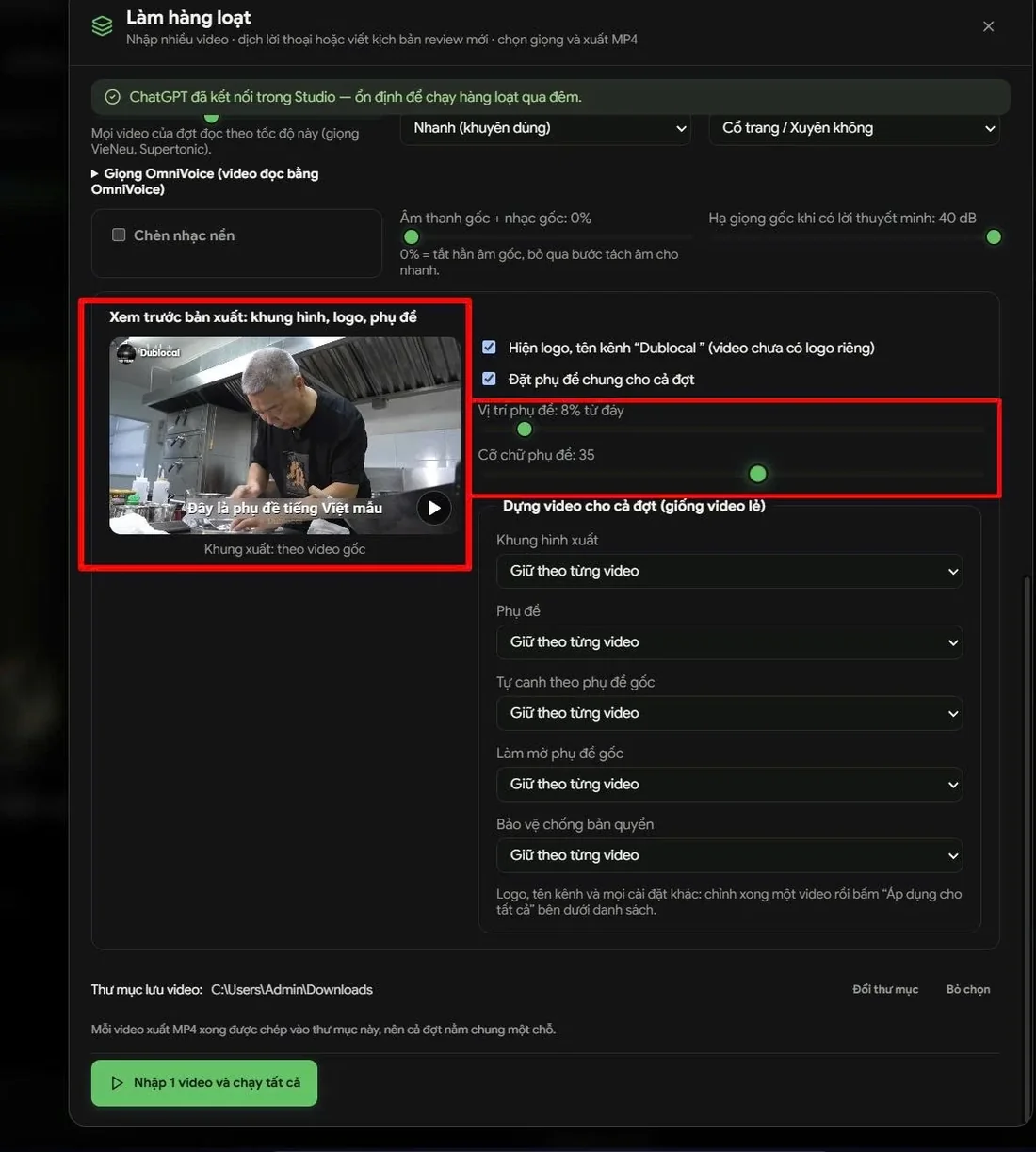
How to do it
- Add videos to the batch: the Export preview panel on the left shows the picture with a sample subtitle line.
- Turn on Set subtitles for the whole batch.
- Drag Subtitle position (for example 8% from the bottom) to move the subtitles up or down.
- Drag Subtitle font size (for example 35) until the text feels right.
- To change the logo, the channel name or any other setting for all videos: finish one video, then press Apply to all below the list.
Logo and channel name
Put your logo and channel name on the video
Want every finished video to carry your logo and channel name? Set it up once in the “Logo, channel name & text on the video” block. Studio saves it to your account and reuses it for later videos, and the result shows right away in the player next to it.
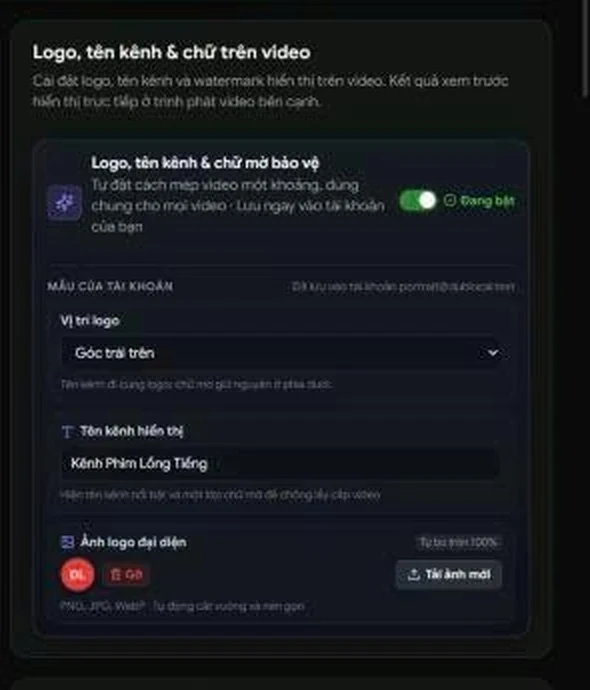
How to do it
- Switch on the Logo, channel name & text on the video block (it reads On).
- Pick the Logo position, for example Top left.
- Type your channel name into Displayed channel name.
- Press Upload a new image to choose your logo (PNG, JPG or WebP); Studio crops it square and compresses it for you.
- Check it in the player next to the settings, then export.
Video tools in the Studio
Download whole series, split and merge videos and cut Shorts right in the Studio to prepare your material before dubbing.
Download, split, merge videos
Download whole series, split and merge videos and cut Shorts in the Studio
The Studio has a <b>Video tools</b> window (the <b>Download & edit video</b> button on the top bar) with four tabs: Download, Merge, Split and Shorts / Hook. Nothing else to install.
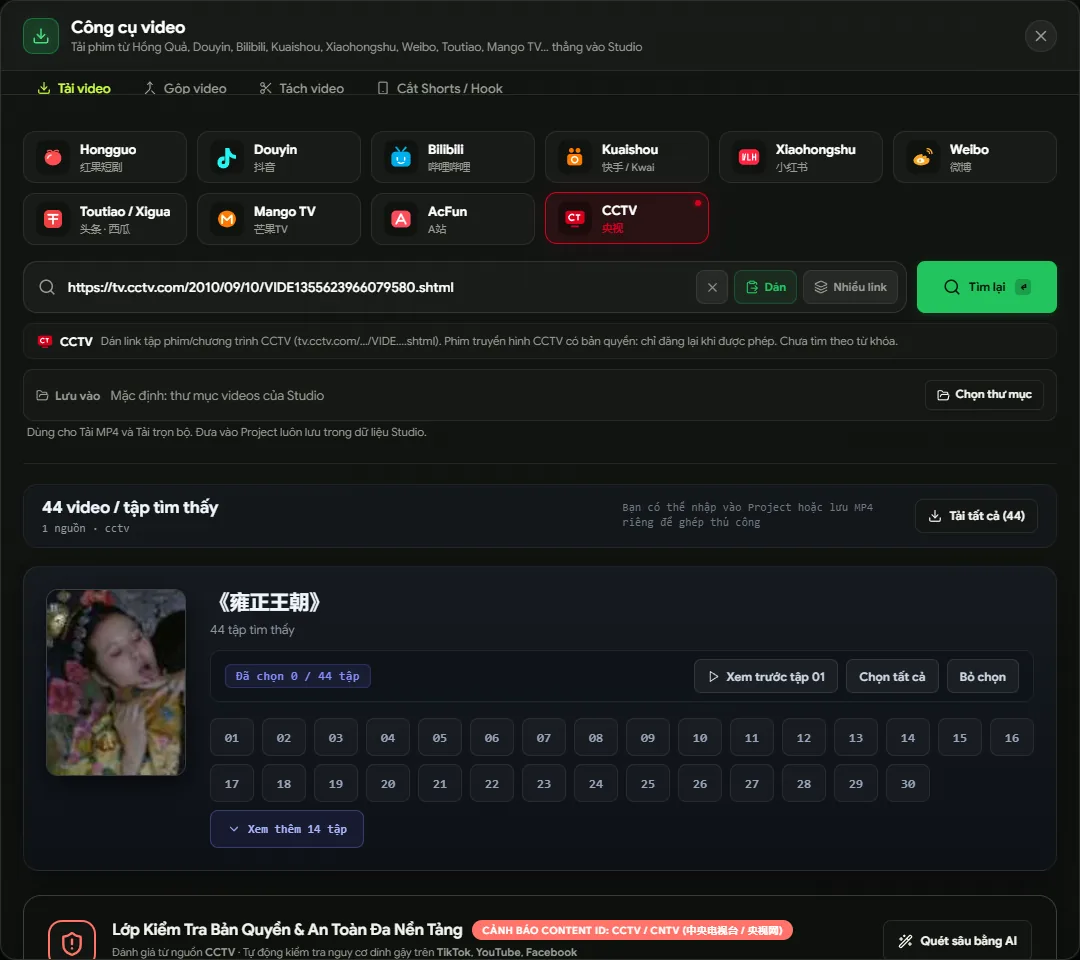
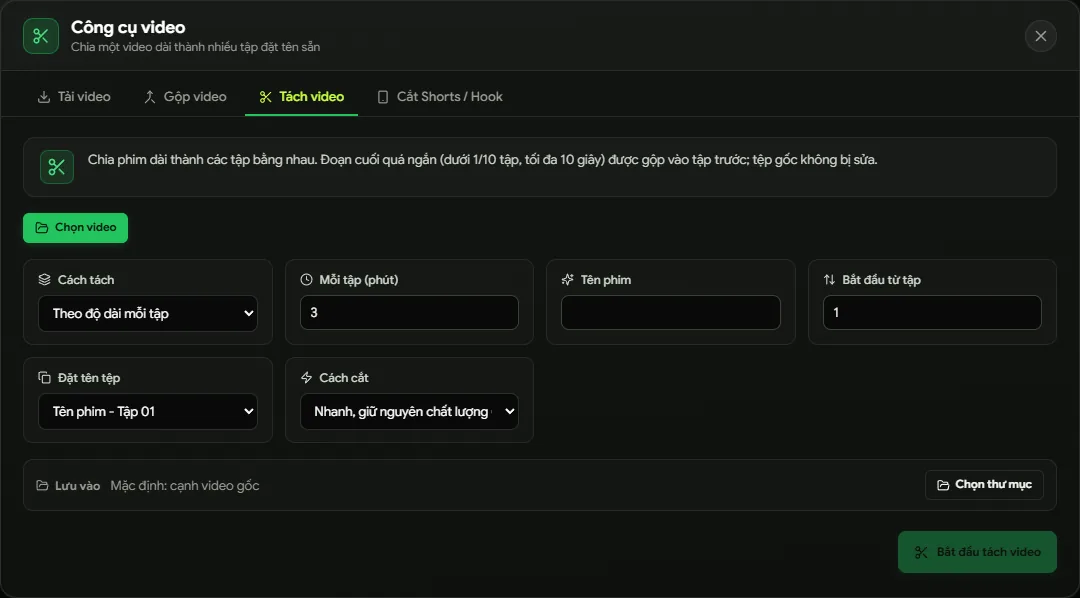
What you can do
- Download from 19 sources: Hongguo, Douyin, Bilibili, Kuaishou/Kwai, Weibo, Toutiao/Xigua, Mango TV, AcFun and (under UK/US) Internet Archive, PeerTube, Plex, Shout! TV, FilmOn and the free episodes of ReelShort, DramaBox, GoodShort, FlexTV, NetShort and MoboReels each have a tab; YouTube links work in any tab.
- A whole series from one link: paste the link of one Hongguo or UK/US short-drama episode (or a Bilibili list) and the Studio lists every episode, up to 500. Press Download all or pick episodes; for several films at once press Multiple links (up to 20).
- See at once whether it worked: after Download this video the button turns to “Downloading…”, the progress shows at the bottom of the window, then it says Downloaded (the video is in a new project) or shows the error and why.
- Split and merge: cut a long video into episodes by minutes or by count, with the title and first episode number you choose; the fast mode does not re-encode, so it is very quick. The Merge tab joins episodes into one video.
- Sources keep working: the Studio updates its yt-dlp source reader by itself when a new release is out (at start and every 6 hours), so a site changing its player does not need a new Studio.
- Copyright warnings: films from studios registered with Content ID (Mango TV, DramaBox, DramaWave…) carry a CONTENT ID badge with the risk on TikTok, YouTube and Facebook. From paid short-drama apps (ReelShort, DramaBox…) only the free episodes download; DramaWave does not.
How to get it
Included in the Studio for licensed accounts: open the Studio and press Download & edit video on the top bar.
Followed the steps and it still fails?
Tell the DubLocal team so they can look at your case. The fastest way is to send your machine's log along.
In Studio, press Report a problem: the report carries a log so the team can see exactly what happened.
Or message the support group directly: